# How to send data from a Chat Funnel to Google Sheets without Make, N8n, or Zapier
If you use Chat Funnels and want to save your users’ responses directly to a Google Sheet, without paying for middleman tools like Make or Zapier, this is for you.
With **Google Apps Script**, you can publish an endpoint that receives the Chat Funnels webhook and automatically writes the data to your spreadsheet. **Free, with no middlemen, and in under 15 minutes**.
---
## What you’ll achieve
```
Chat Funnels → Google Sheets ✅
```
Every time a user completes your funnel, their responses will automatically appear as a new row in your spreadsheet.
---
## Step 1 — Set up your Google Spreadsheet
1. Go to [sheets.google.com](https://sheets.google.com) and create a new sheet
2. In the first row, add your column headers based on the data you want to save. For example:
```
A1: Name | B1: Response | C1: Date and time | D1: LanguageCode language: JavaScript (javascript)
```
---
## Step 2 — Open Google Apps Script
1. In the top menu of your sheet, go to **Extensions → Apps Script**
2. The code editor will open in a new tab
---
## Step 3 — Write the script
Delete everything in the editor and paste this code:
```
function doPost(e) {
try {
const sheet = SpreadsheetApp.getActiveSpreadsheet().getSheetByName('Sheet1');
const data = JSON.parse(e.postData.contents);
sheet.appendRow([
data.name,
data.question,
data.date + ' ' + data.time,
data.lang
]);
return ContentService
.createTextOutput(JSON.stringify({ status: 'ok' }))
.setMimeType(ContentService.MimeType.JSON);
} catch (error) {
return ContentService
.createTextOutput(JSON.stringify({ status: 'error', mensaje: error.toString() }))
.setMimeType(ContentService.MimeType.JSON);
}
}
```
```
function doPost(e) {
try {
const sheet = SpreadsheetApp.getActiveSpreadsheet().getSheetByName('Sheet1');
const data = JSON.parse(e.postData.contents);
sheet.appendRow([
data.name,
data.question,
data.date + ' ' + data.time,
data.lang
]);
return ContentService
.createTextOutput(JSON.stringify({ status: 'ok' }))
.setMimeType(ContentService.MimeType.JSON);
} catch (error) {
return ContentService
.createTextOutput(JSON.stringify({ status: 'error', mensaje: error.toString() }))
.setMimeType(ContentService.MimeType.JSON);
}
}
```
> **Note:** The fields `payload.data.name`, `payload.data.question`, etc. match the payload structure sent by Chat Funnels. Adjust the names based on the fields in your own funnel.
>
> 
Save the project with **Ctrl+S** and give it a name, for example: `Webhook Receiver`.
---
## Step 4 — Publish the script as a Web App
This is the most important step: you turn your script into a public HTTP endpoint that Chat Funnels can call.
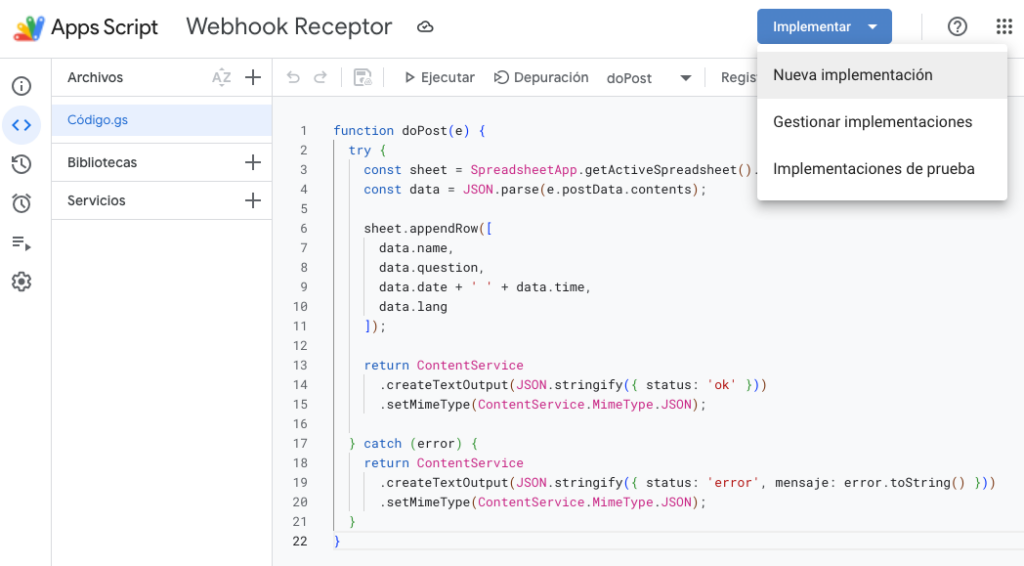1. Click **Deploy → New deployment**
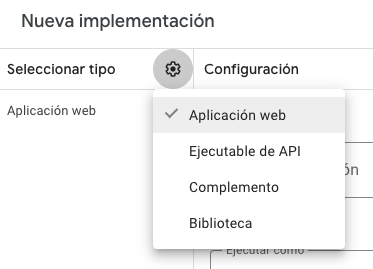
2. Click the gear icon ⚙️ and select **Web app**
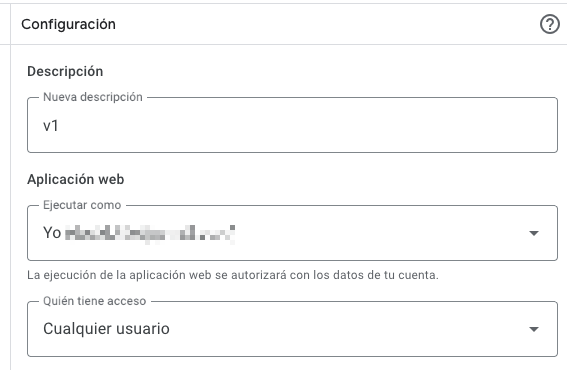
3. Configure it like this:
- **Description:** For example, V1
- **Execute as:** Your Google account
- **Who has access:** Anyone
1. Click **Deploy**
2. Authorize the permissions Google asks for
> If the warning “Google hasn’t verified this app” appears, click **Advanced** and then “Go to \[project name\]”. It’s your own script, so it’s safe.
When you’re done, you’ll get a URL in this format:
```
https://script.google.com/macros/s/XXXXXXXXXXXXXXX/execCode language: JavaScript (javascript)
```
**Copy that URL — it’s your webhook endpoint.**
---
## Step 5 — Set up the webhook in Chat Funnels
In the funnel step where you want to capture the data, add a **Webhook** block and configure it like this:
- **Endpoint URL:** the URL you copied in the previous step
- **Method:** POST
- **Format:** JSON
- **Client:** Server
- **Data sent:** select the funnel fields you want to save
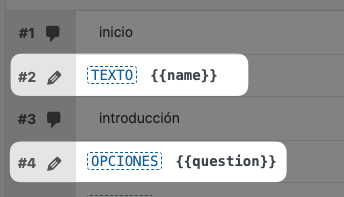
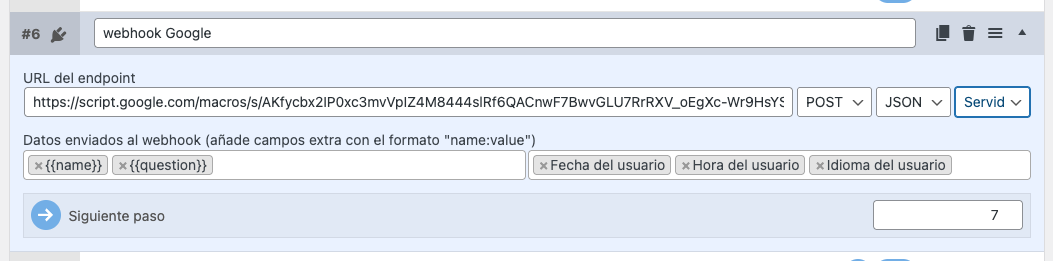In the screenshot example, `{{name}}` and `{{question}}` are funnel variables, and the date `{{date}}`, time `{{time}}`, and user language `{{lang}}` are also added as system fields.
---
## ⚠️ Important things to remember
**Every time you modify the script**, you must publish a new version, otherwise the changes won’t take effect:
> Deploy → Manage deployments → ✏️ edit → New version → Deploy
**The 400 error in the Chat Funnels log is normal.** Google redirects the endpoint response, and Chat Funnels may interpret that as an error, but the data is still written correctly to the sheet. It does not affect how it works.
---
## Final result
Every time a user completes the funnel, a new row will automatically appear in your Google Sheets with all their data, without going through any external automation tools.
**Free. No execution limits. No extra setup.**