…`
- Class CSS `joinchat_force_show`, to show always.
e.g. ``
| | **Show Chat Window** | **Open WhatsApp** |
|---|---|---|
| **url** | `?joinchat` or `#joinchat` | |
| **click** | `href="#joinchat"` or `class="joinchat_open"` | `href="#whatsapp"` or `class="joinchat_app"` |
| **scroll** | `class="joinchat_show"` or `class="joinchat_force_show"` | |
Joinchat Triggers Summary
## WhatsApp button in the menu
To add a WhatsApp button to the WordPress menu simply navigate from **Desktop → Appearance → Menus**. In the **"Add items to menu"** block access **"Custom links"**.
**Open chat window**
In URL add `#joinchat` to display the chat window (or launch WhatsApp if there is no CTA) when clicked. Customize the link text and click **"Add to menu"**.
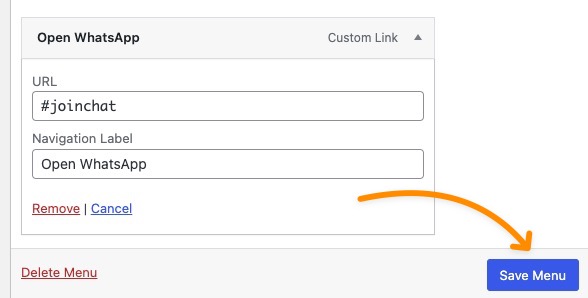
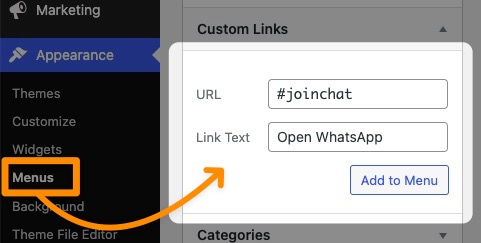Once the item has been added, click on **"Save menu"**.
Now you can see the result in the front end of your website.
**Launch WhatsApp directly**
In URL add `#whatsapp` to launch WhatsApp. Customize the link text and click **"Add to menu"**.
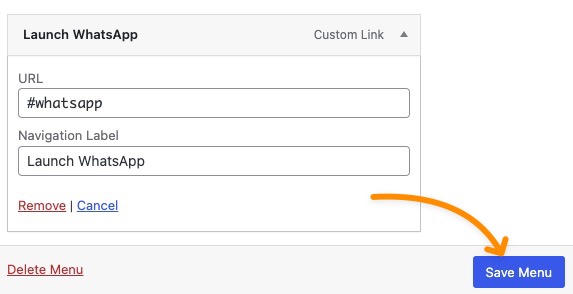
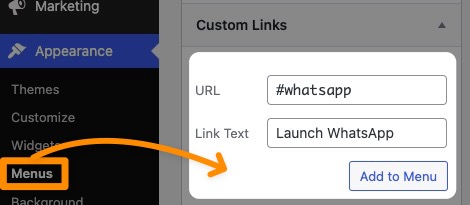Once the item has been added, click on ****"Save menu"****.
Now you can see the result in the front end of your website.
## WhatsApp button in Gutenberg
To create a WhatsApp button in the Gutenberg editor add a button block, once customized just add as a link `#joinchat` if you want to show the chat window (or launch WhatsApp if there is no CTA) or `#whatsapp` to launch WhatsApp directly when clicked.
Remember that you can not only use this in a button, for example you can add it to any text link, [here is an example](/wp/#whatsapp), also to an image link, it is very simple and gives you many possibilities.
## WhatsApp button in Elementor
To create a WhatsApp button with the Elementor visual editor drag the button element to the page, configure its appearance and add as a link `#joinchat` if you want to show the chat window (or launch WhatsApp if there is no CTA) or `#whatsapp` to launch WhatsApp directly on click.
Remember that you can not only use this on a button, for example you can add it to any text link, an image or any Elementor widget that allows you to insert a link.
## When scrolling
Another very interesting way to interact with Joinchat is by adding CSS classes in HTML elements, this will allow us for example to execute triggers when an element appears on the screen.
Select the block you want to trigger, it can be a paragraph, an image or any Gutenberg block that allows the insertion of CSS classes. In the right sidebar, **Block → Advanced → Additional CSS Classes.**
Add `joinchat_show` to show the chat window when the block appears on screen when scrolling (only if it is an unseen CTA), or `joinchat_force_show` to show the chat window when the block appears on screen when scrolling (always).
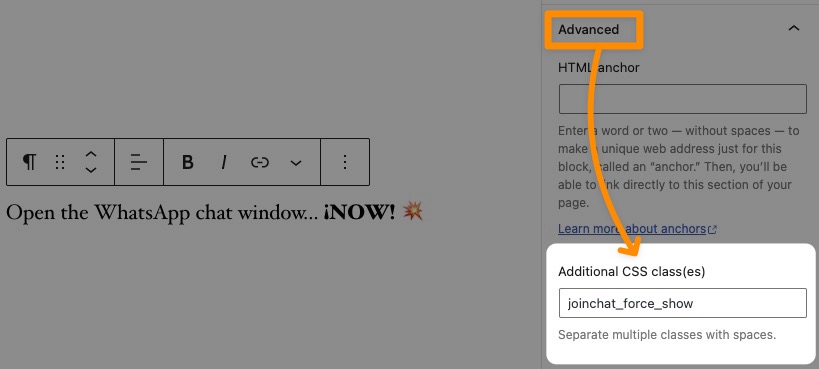Continue scrolling and you will see the result 👇
Open the WhatsApp chat window… **¡NOW!** 💥
 `
3. **On click**, show Chat Window:
If there is no Chat Window (no CTA and no Opt-in required) WhatsApp opens directly.
- Href `#joinchat`
e.g. `Contáctanos`
- Class CSS `joinchat_open`
e.g. `
`
3. **On click**, show Chat Window:
If there is no Chat Window (no CTA and no Opt-in required) WhatsApp opens directly.
- Href `#joinchat`
e.g. `Contáctanos`
- Class CSS `joinchat_open`
e.g. `