# Setting up CTA Extras
## CTA Extras activation
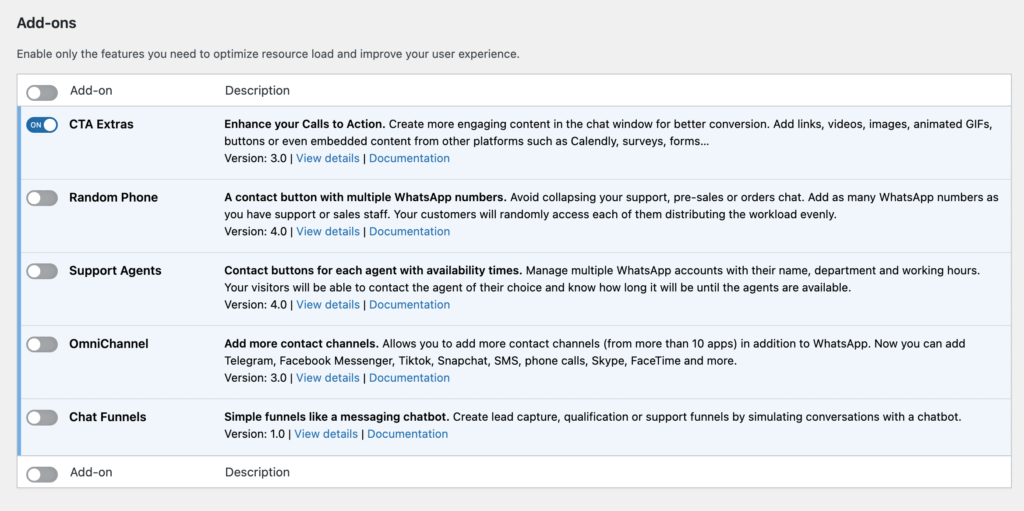
To add and configure the call-to-action window with multimedia and interactive content, go to the WordPress dashboard in the **Joinchat > Settings > Premium** menu and enable (ON) the **CTA Extras** add-on.
## At a general level
With CTA Extras you can create rich content in the chat window, to make calls to action (CTA) much more appealing. You can add video, links or linked images, you can even add animated Iframes or gifs.
1. To add content, go to the WordPress control panel and **click Settings> Joinchat**.
2. In the section **Chat window / Call to action** click on the text field, to the left will appear **Extended syntax**, where you can see the different ways to add content.
3. **Click on save changes** and check the chat window to see that everything is to your liking.
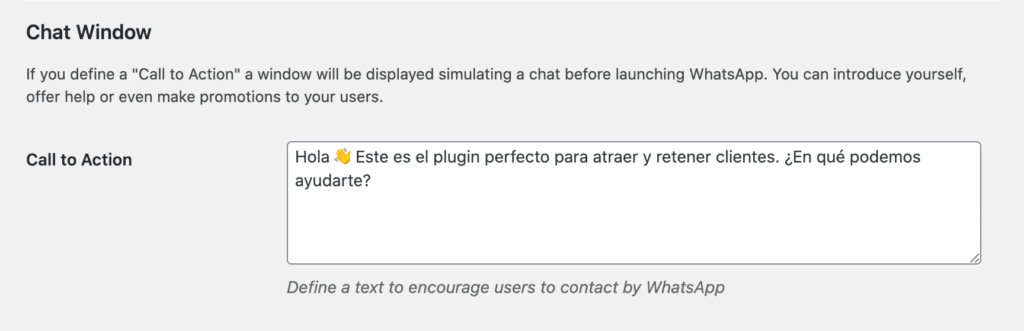*"Call to Action"* field at the general settings for the entire website.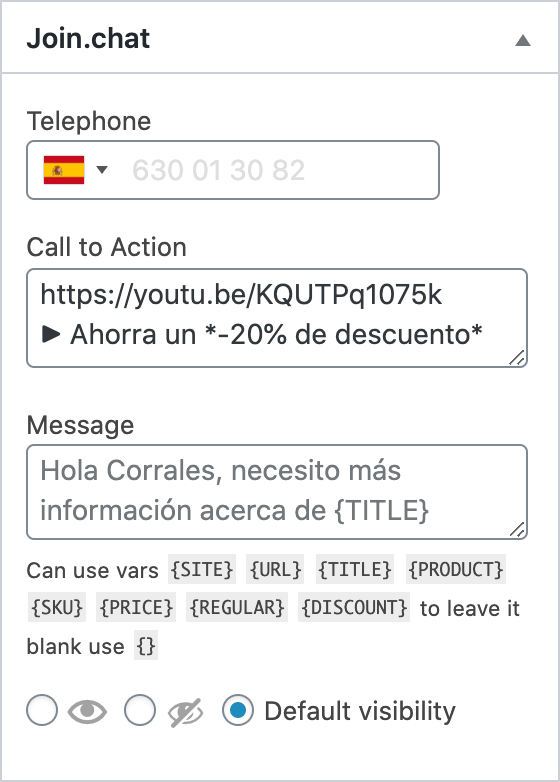Settings in the *CTA Extras addon* (Customize "Call to Action" field) at the level page.---
## Extended syntax
In addition to WhatsApp formatting styles \_*italic*\_ \***bold**\* ~strikethrough~ with **Joinchat CTA Extras** you can enrich your Calls to Action with links, images, videos and more.
| Link | `[title](https://www.example.com)` `{LINK https://www.example.com title}` |
|---|---|
| Button | `{BTN https://www.example.com title}` |
| Image | `` `{IMG image.jpg width alt_text}` |
| Iframe | `#[height](https://www.example.com)` `{IFRAME https://www.example.com height}` |
| YouTube Video | `https://www.youtube.com/watch?v=videoid` `https://youtu.be/videoid` |
| Vimeo Video | `https://vimeo.com/videoid` |
| Calendly Widget | `https://calendly.com/username/event` |
| Code | ``code`` |
| Horizontal Rule | `---` |
List of supported elements, if you are familiar with Markdown you can use its syntax (italic optional fields)The elements can be combined. For example, for an image with link:
`{LINK https://www.example.com {IMG image.jpg alt_text}}`
To learn more, visit our [examples and tricks page](https://docs.join.chat/wp/cta-extras-examples/).
## Images
On images you can use an **image url** or an **image ID** of your Media Library.
💡 **Recommendation:** if ID is used, the **image will be resized** to the defined size or width of the message.
You can use `FEATURED` or `THUMB` as image url to use the **Featured Image of current post** or product.
The default style for **Joinchat** images has rounded edges and a small shadow. But some images have a white or transparent background and can be unsightly. To disable these styles simply add a width less than 330, e.g. `{IMG image.jpg 325 alt_text}`. It is also useful for using small inline images (such as icons or logos).
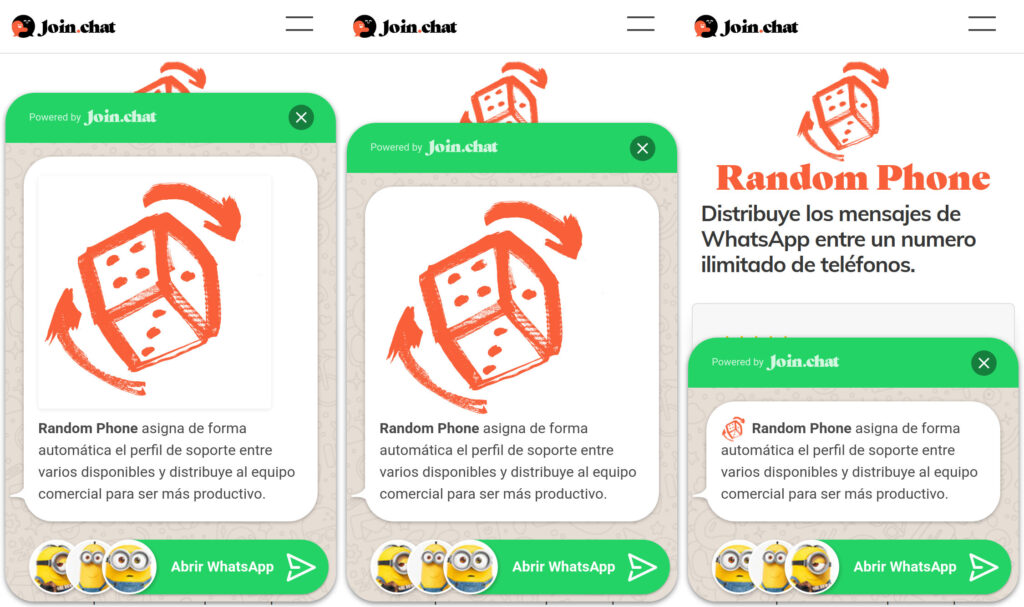**Examples.** Featured Image with title as alt text in various sizes
`
*Random Phone* asigna de forma automática el perfil de soporte…`
`
*Random Phone* asigna de forma automática el perfil de soporte…`
` *Random Phone* asigna de forma automática…`## Multiple Messages
You can write several messages, each with its speech bubble, simulating a conversation. Only need to add a new line with `===` between messages. See an example:
```
Hi! 👋
===
Need help?
===
Write us 👇
```